Installing Docker Engine on Ubuntu Server 24.04
A guide to installing Docker Engine and the Compose plugin on Ubuntu Server 24.04 from the official repository, up to a running test container.
There is one habit worth forming the moment a fresh server comes up: decide how applications will run before there are any. For most projects, that answer is Docker.
Docker runs applications inside containers, so an application’s dependencies — a PHP version, Node.js, PostgreSQL, whatever it needs — are not installed onto the host operating system. The server only provides the kernel, Docker, and disk space. When a system update arrives, the thing that breaks is usually not the container, because the container carries its own dependencies.
This article records the installation of Docker Engine on Ubuntu Server 24.04 from Docker’s official repository, plus the Compose plugin. Every command runs once per server and is easy to repeat on another machine.
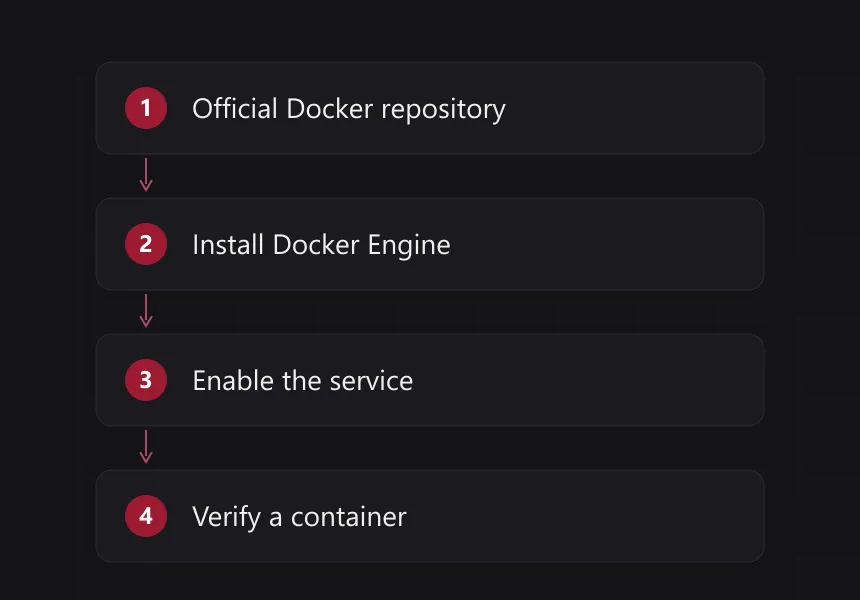
The same four steps every time a new server is provisioned.
Prerequisites
All you need is Ubuntu Server 24.04, internet access, and a user allowed to run sudo. Nothing has to be prepared in advance; the required packages are installed in step three.
1. Update the package list
Start from an up-to-date system, so the Docker packages do not collide with an older version still sitting in the cache:
sudo apt update
sudo apt upgrade -y
2. Remove older Docker packages
If this server has ever used Docker from another repository, the following packages can conflict and are better removed first:
sudo apt remove docker.io docker-doc docker-compose podman-docker containerd runcThis removes packages, not data. Images, containers, and volumes already in /var/lib/docker stay where they are. If Docker was never installed here, apt reports that the packages are not found and you can continue.
3. Add Docker’s official repository
Ubuntu’s own repository often lags behind by a few releases, so the installation is pointed at Docker’s official repository. The packages needed to manage it:
sudo apt install ca-certificates curlCreate the keyring directory, then download Docker’s official GPG key into it:
sudo install -m 0755 -d /etc/apt/keyrings
sudo curl -fsSL https://download.docker.com/linux/ubuntu/gpg \
  -o /etc/apt/keyrings/docker.asc
sudo chmod a+r /etc/apt/keyrings/docker.asc
The chmod a+r matters because APT reads that key as another user, not as root. Without read permission, apt update fails with a signature error that does not mention permissions at all.
Next, register the repository. Ubuntu 24.04 supports the deb822 format, which puts the whole configuration in a single .sources file instead of several deb and deb-src lines:
sudo tee /etc/apt/sources.list.d/docker.sources > /dev/null <<EOF
Types: deb
URIs: https://download.docker.com/linux/ubuntu
Suites: $(. /etc/os-release && echo "${UBUNTU_CODENAME:-$VERSION_CODENAME}")
Components: stable
Architectures: $(dpkg --print-architecture)
Signed-By: /etc/apt/keyrings/docker.asc
EOF
The $(...) parts inside the heredoc are intentionally unquoted, so the codename and architecture are filled in from the running system. The result is one file stating where packages come from, for which architecture, and which key verifies them.
Reload the package list so the new repository is picked up:
sudo apt update4. Install Docker Engine
sudo apt install docker-ce docker-ce-cli containerd.io \
  docker-buildx-plugin docker-compose-plugin
Those five packages do different jobs:
- docker-ce — the Docker daemon that runs and manages containers.
- docker-ce-cli — the
dockercommand you type in a terminal. - containerd.io — the runtime handling container lifecycles beneath the daemon.
- docker-buildx-plugin — the image build engine behind
docker build. - docker-compose-plugin — the
docker composecommand for multi-container applications.
The last two are what make daily work comfortable: BuildKit builds and a single compose.yaml for an application plus its database.
5. Enable the Docker service
To have Docker start when the server boots, enable the service now:
sudo systemctl enable --now dockerCheck its status:
sudo systemctl status dockerThe expected status is active (running). If the service fails to start, the most common cause is an invalid daemon configuration in /etc/docker/daemon.json; journalctl -u docker -n 50 shows the offending line.
6. Verify the installation
Check the installed versions:
docker --version
docker compose version
Then run a test container:
sudo docker run hello-worldThat command pulls a small image from Docker Hub, runs it, and prints a confirmation message. When the message appears, three things are proven: the CLI can reach the daemon, the connection to the registry works, and a container can be created and executed.
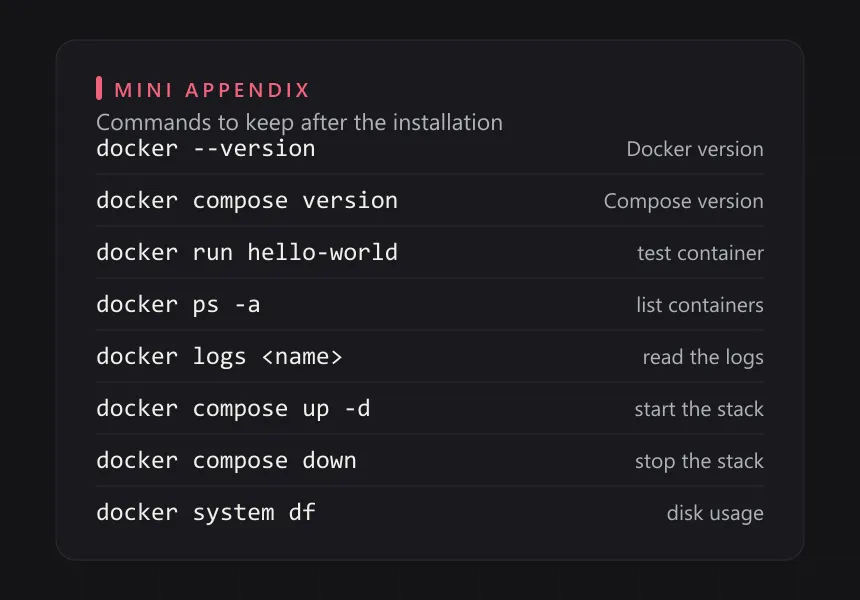
Keep this list nearby; the rest is rarely needed.
7. Running Docker without sudo (optional)
By default every Docker command needs sudo. If the server is used by a single trusted user, that user can be added to the docker group:
sudo usermod -aG docker "$USER"Group changes do not apply to the session that is already open. Log out and back in, or start a fresh shell with:
newgrp dockerThen try again without sudo:
docker run hello-worldSecurity note: membership in the docker group is effectively root. Anyone in it can run a container with a host directory mounted, including /, and therefore modify system files. On a shared server it is safer to keep using sudo or to restrict access another way.
After the installation
The next step is usually writing a compose.yaml, not installing a database straight onto the host. The simplest shape: one service for the application, one for the database, one volume for data, and ports exposed only to the internal network. Moving the application to another server then means moving the compose file and its volumes, rather than repeating the whole installation.
If this server has a firewall, make sure only the ports that need to be open are open — usually 80 and 443 through a reverse proxy, not the container ports directly.
Closing
Installing Docker on Ubuntu Server 24.04 is four things: the official repository, the right packages, a running service, and one test container proving it all works. The rest is habit — use official images, keep data in volumes, and do not install applications onto the host.
Reference: Install Docker Engine on Ubuntu and Docker Compose — Docker’s official documentation.